
The Lists tab will allow you to manage lists for a given group. Most often, a group will only have one associated list that people can share to.
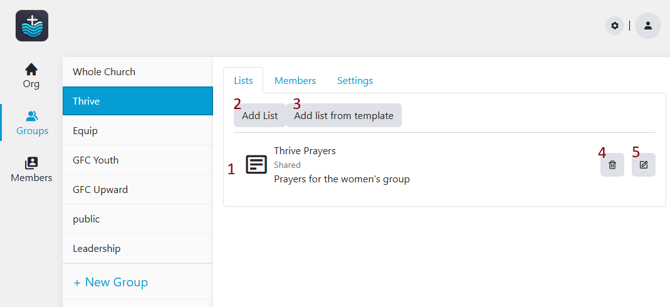
There are 5 major tasks that can be performed on the Lists tab
- Available Lists are associated with the currently selected Group. Clicking on this section will take you into the list to see individual prayers in the list.
- Add List will open the Add list dialog box and allow you to create a new list.
- Add List from template (when available) will allow you to create a list from an available template.
- The trash can will allow you to delete a list. Once deleted, this list and its contents can never be recovered.
- The edit list button will open the Edit List dialog box and allow you to make changes to the list settings. The options are the same as Add List
Available Lists
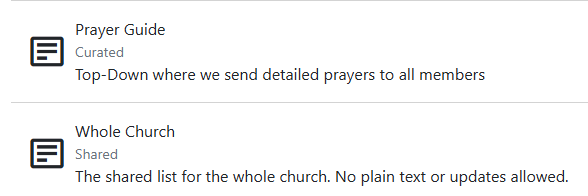
Lists will show List Name, Type and Description. Clicking on a list will drill-into the list an allow you to manage prayers within the list.
Add List Button
Clicking on this button will show the Add List Dialog.
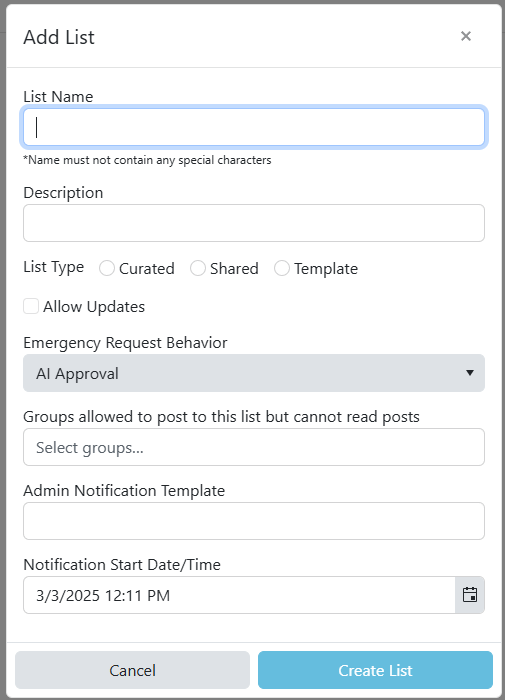
- List Name is the name that you want to use for the list. This will be visible to admins and users.
- Description is a short description on what the list is used for. This is visible when you are selecting lists in the Lists tab.
- List Type is where you specify the type of list that this will be. It cannot be changed.
- Curated is for admin-edited prayers to be distributed to many people. An example is a weekly prayer list to be shared with all church members.
- Shared is for users in the group to be able to share with each other. A bible study is an example.
- Allow Updates You can allow or deny users to update their prayers. If the box is not checked, users can not submit updates to their prayers.
- Emergency Request Behavior allows you to select whether prayer requests will be checked by AI before an approval is sent to a human approver. See here for more information
- Groups allowed to post to this list Possibly the most confusing option. If desired, select a group that you would like to allow to post to this list, but not see any contents of it. An example of this may be where Members of a "Youth" group may be able to request confidential prayer from their leaders.
- Admin Notification Template and Notification Start Date/Time are used during the setup of your Organization. Do not change these fields unless instructed to do so by the PrayMore account team
Delete List
The trash can (Delete) button will ask for confirmation before you delete a list. Deleting a list will remove that list from any users devices when they next sync to PrayMore as well as immediately delete that list from PrayMore's servers. This cannot be recovered so be sure that you actually want to do this.