
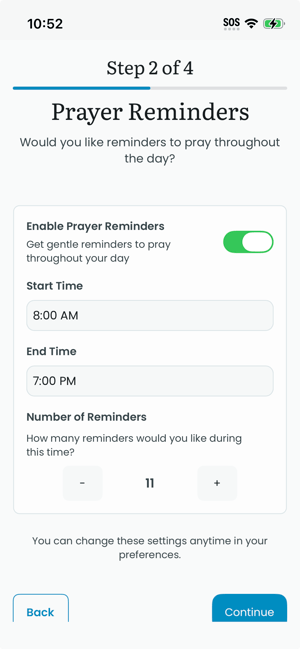
Reminders
First, set up your reminders. Tap on the Enable Prayer Reminders button to activate notifications; then select your preferred reminder Start Time, End Time, and Number of Reminders to complete your preferences. Tap on the Continue button at the bottom when finished. You may need to scroll to see the navigation buttons.
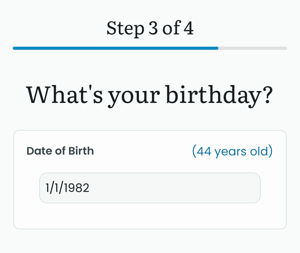
Birthday
PrayMore will ask you to enter your birthday. We ask for your birthday in order that we prevent minors from accessing features that should require parental permission or supervision, specifically, the ability of other members in a prayer group to contact the user. Input your birthday, and tap Continue.
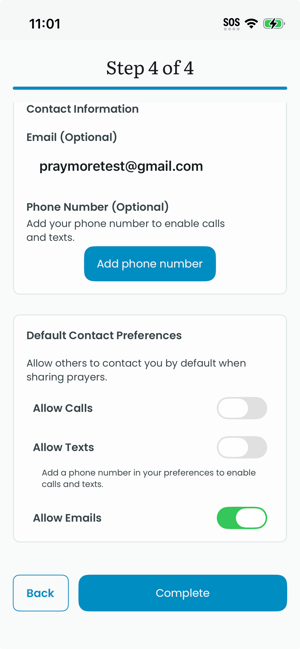
Sharing Preferences
Finally, set how you would like others to connect with you. PrayMore intentionally does not include any in-app messaging. This is to encourage direct connection with the people you pray with.
In this screen, you can set how your name will appear, whether you would like to be contacted by email, texts, or phone calls. Tap Complete to finish setting up your user.
You now have access to others' prayer requests.
- You can add your own by tapping on the blue plus (+) icon.
- Notice at the bottom of the screen that you are on the prayer requests Feed screen.
- You can tap on the Lists icon to access groups to which belong.
- Tap on Journal to create your own private prayer journal that only you will see.
- Tap on Profile to further add details and review your preferences via Settings.