
Install PrayMore on your device and open PrayMore
Set Up Your PrayMore App
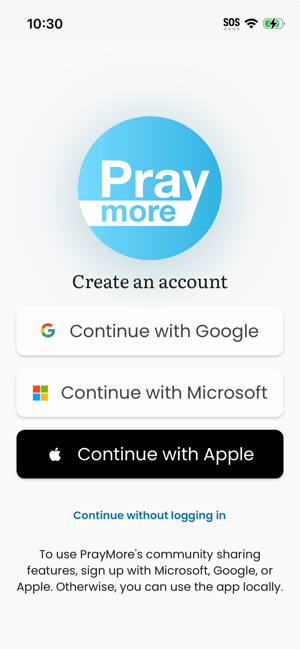
After opening PrayMore you will see a screen similar to the one below that will allow you to log in with your Apple/Google/Microsoft user credentials. If you are already logged in, your screen may look different.
Select one of the three identity providers you would like to use to authenticate PrayMore.
- If you are using an Android device, we recommend using Continue with Google
- If you are using an Apple device, we recommend using Continue with Apple
*Note that this is just to manage your password. Google, Microsoft, and Apple will never see any of the content or activity you do in PrayMore.
If you have never used PrayMore before, you may be asked if you are willing to use your account to connect with PrayMore. You will need to grant permission here in order to use PrayMore to join your church or other community in PrayMore.
After you have accepted, you will be presented with the Welcome page.
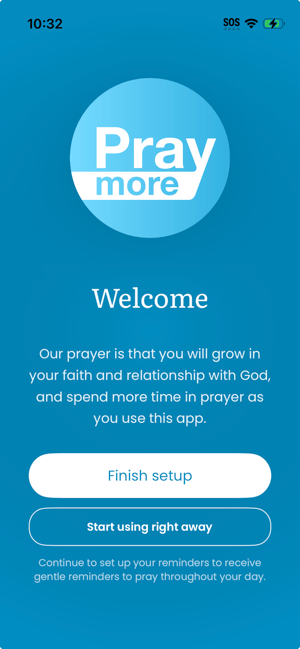
PrayMore is almost set up! Now you will need to scan a QR code that has been provided by your church so that you can start praying!
The above steps are the BARE MINIMUM to get started with PrayMore but we strongly recommend tapping Finish setup on the screen to configure your default contact settings and your prayer reminders. How to complete your PrayMore setup