
After selecting Profile, tap on the Settings button in the top right of screen.
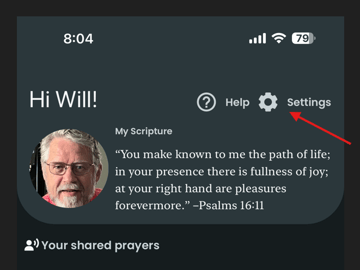
Leading to the Settings screen: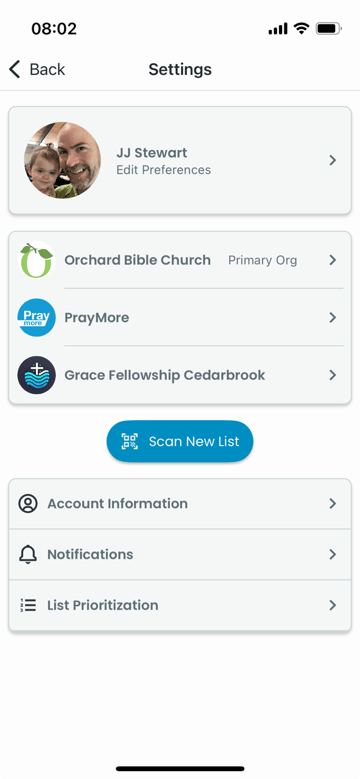
Edit Preferences
This button will take you to the Preferences screen where you can first fine-tune your profile photo, name, and how you want to be contacted using PrayMore.
Church & Organizations
Under the Edit Preferences section, you will see your church and all organizations that you have that are connected to PrayMore. One of them will include the designation Primary Org, meaning that PrayMore will treat this option as your first preference. You can tap on your church or any of the organizations to see what lists are available to you as subscriptions.
Scan New Lists
This button enables you to scan a QR code provided by your church to add a new subscribed list. For instance, you may want to join the "Ladies Bible Study" group in your church. One of the group leaders can provide you with a QR image that will allow you to join.
Account Information
Tapping this will take you to the Account Information screen that will allow you to sign out or remove your PrayMore account.
Notifications
Tapping this will take you to the Notifications screen that will allow you to schedule reminders to pray throughout the day.
List Prioritization
Tapping this will take you to the Prioritization screen where you can prioritize your lists in the order of their appearance in Feed as well as set their frequency as notifications to pray.